Playing Your First Game
This page walks through starting a custom lobby and playing a first X01 match with autoscoring hardware, from the lobby through to correcting a misdetected dart mid-game and finishing the match.
Start a lobby
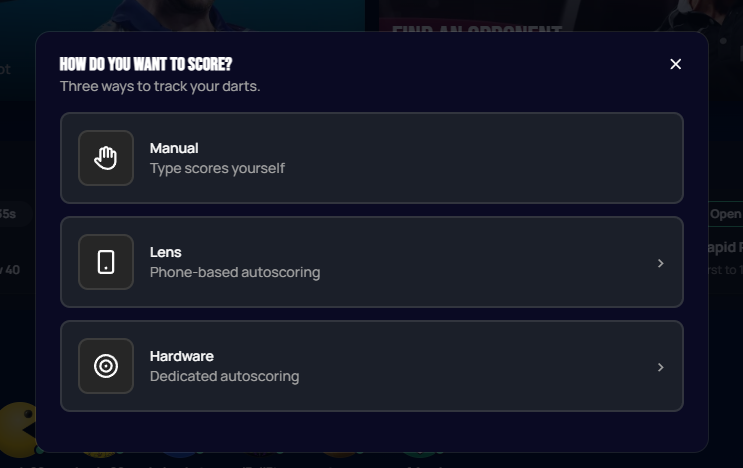
Open a custom lobby either from the Play item in the top navigation, or by selecting the Play Now tile on the Home page. The first time you set up scoring in a lobby, Autodarts asks how you want to track your darts: Manual, Lens, or Hardware. Selecting Hardware uses a dedicated Autodarts board (see Connecting a Board for what each option means).
 Personal data redacted
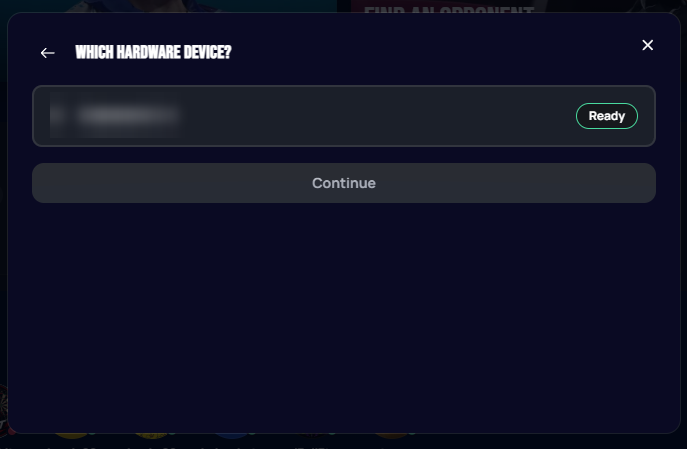
With Hardware selected, pick the board to use. New accounts will typically see a single board here, shown as Ready when it's online and available.
 Personal data redacted
The lobby
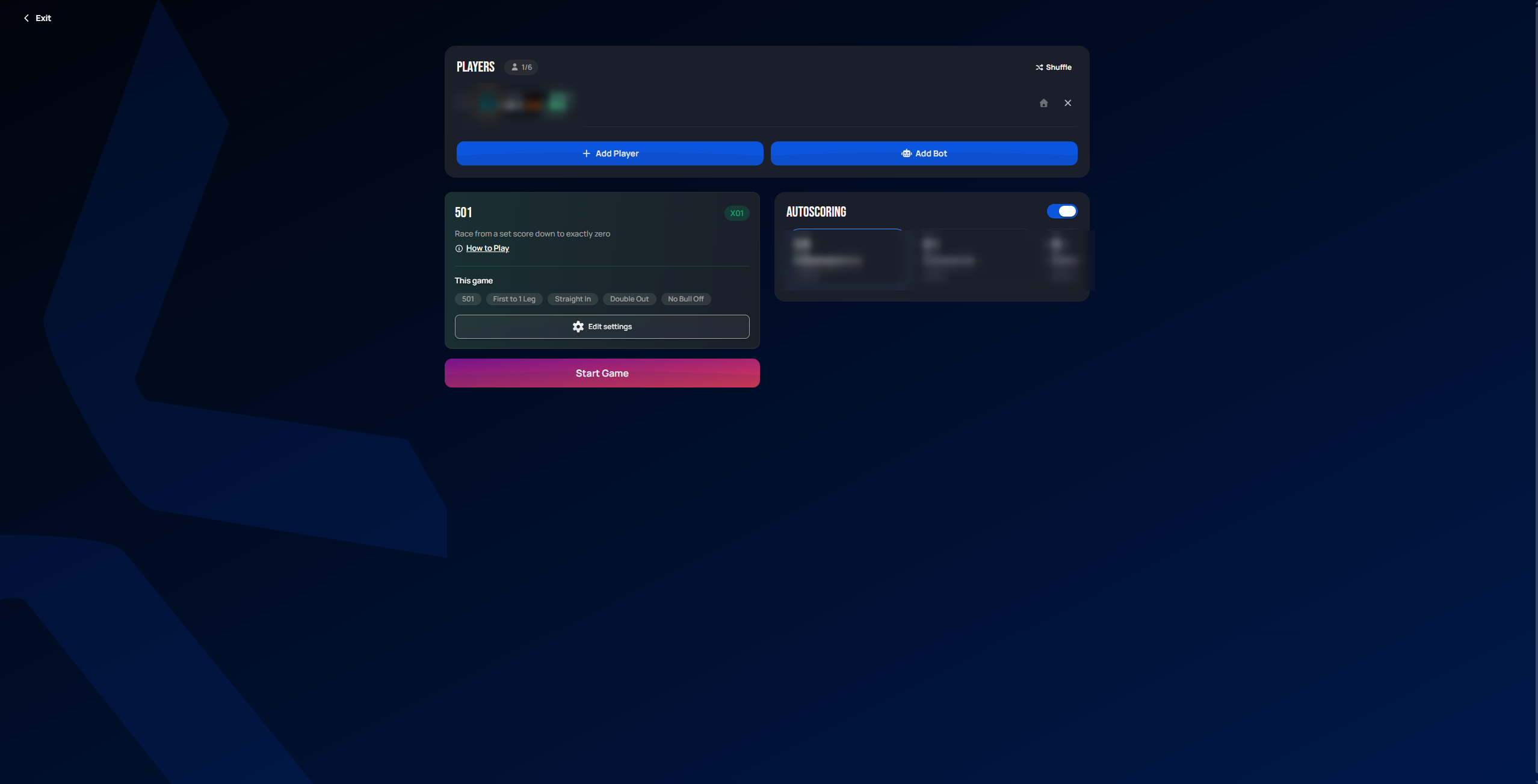
Selecting Continue opens the lobby. By default it's set up for a solo 501 (X01) game with autoscoring enabled and your board selected. From here you can add players or bots, change the game mode and settings, or start the game right away.
 Personal data redacted
Game settings
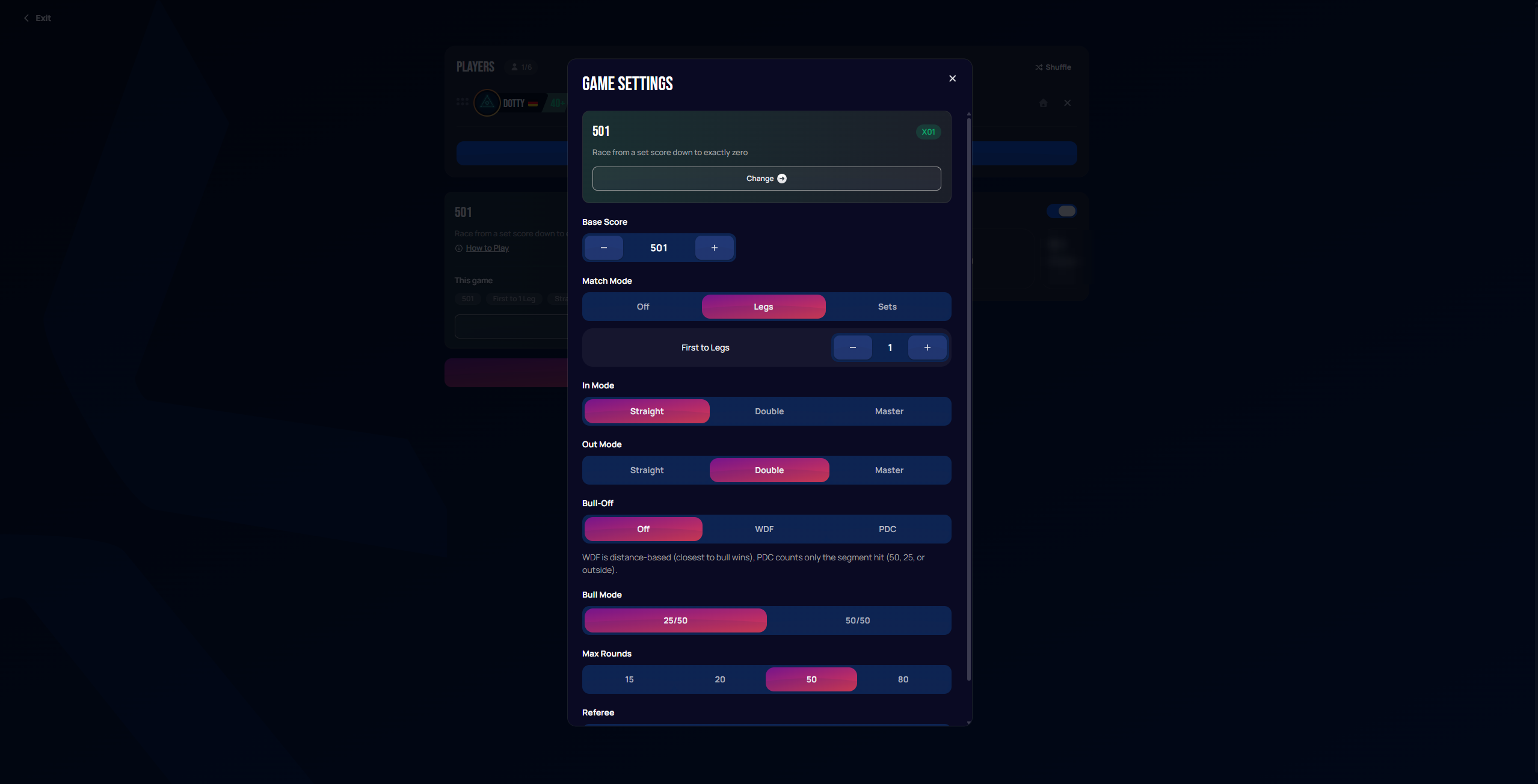
Selecting Edit settings opens the full settings panel for the current game mode: base score, match mode (legs/sets), in/out mode, bull-off rules, bull mode, max rounds, and referee. The defaults shown here (501, first to 1 leg, straight in, double out) are a good starting point for a first game.
 Personal data redacted
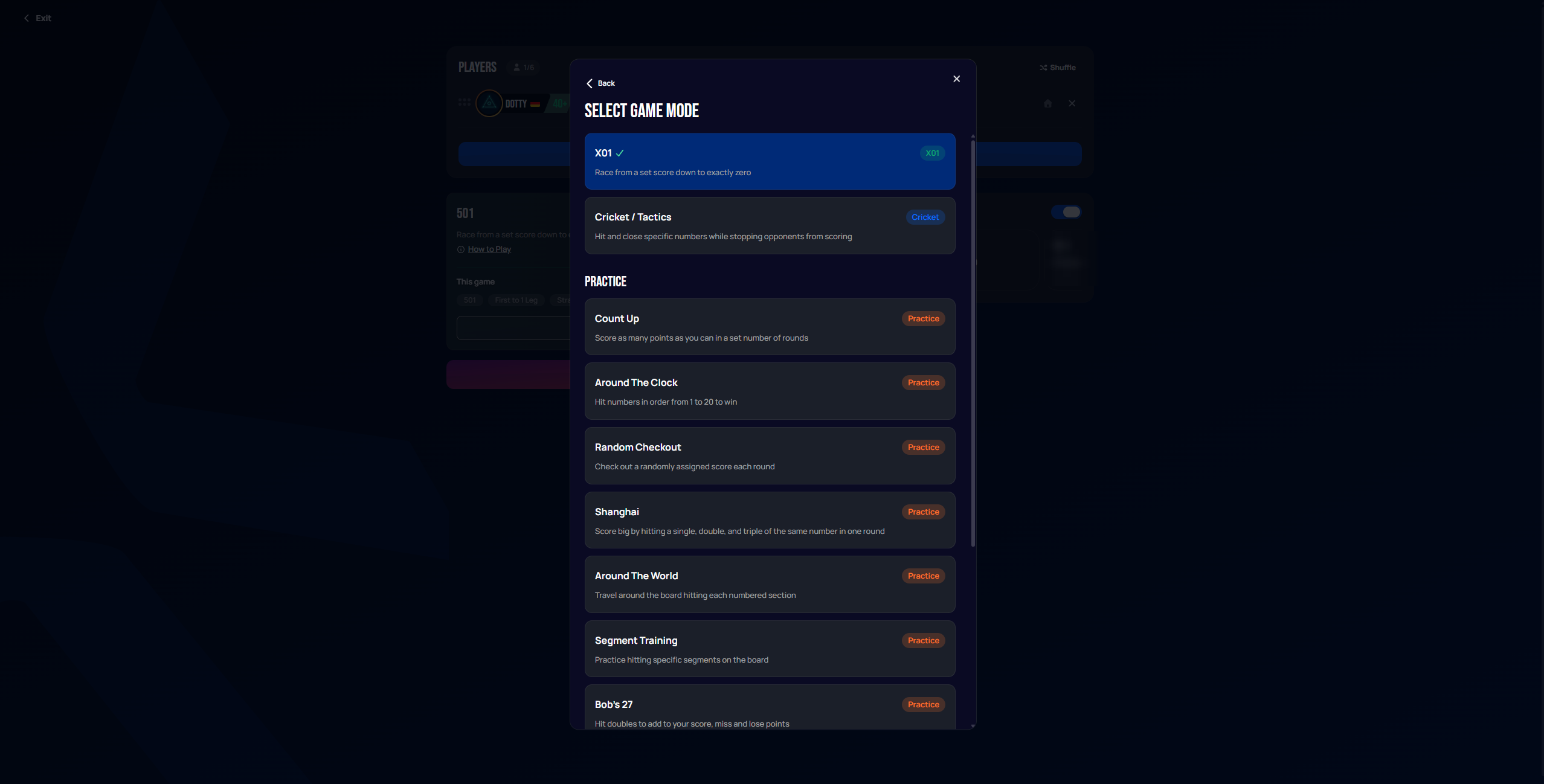
Selecting Change on the game mode card opens the full list of competitive modes (X01, Cricket/Tactics) and practice modes (Count Up, Around the Clock, Random Checkout, Shanghai, Around the World, Segment Training, Bob's 27, and more). X01 is the recommended default for a first game.
 Personal data redacted
Adding players
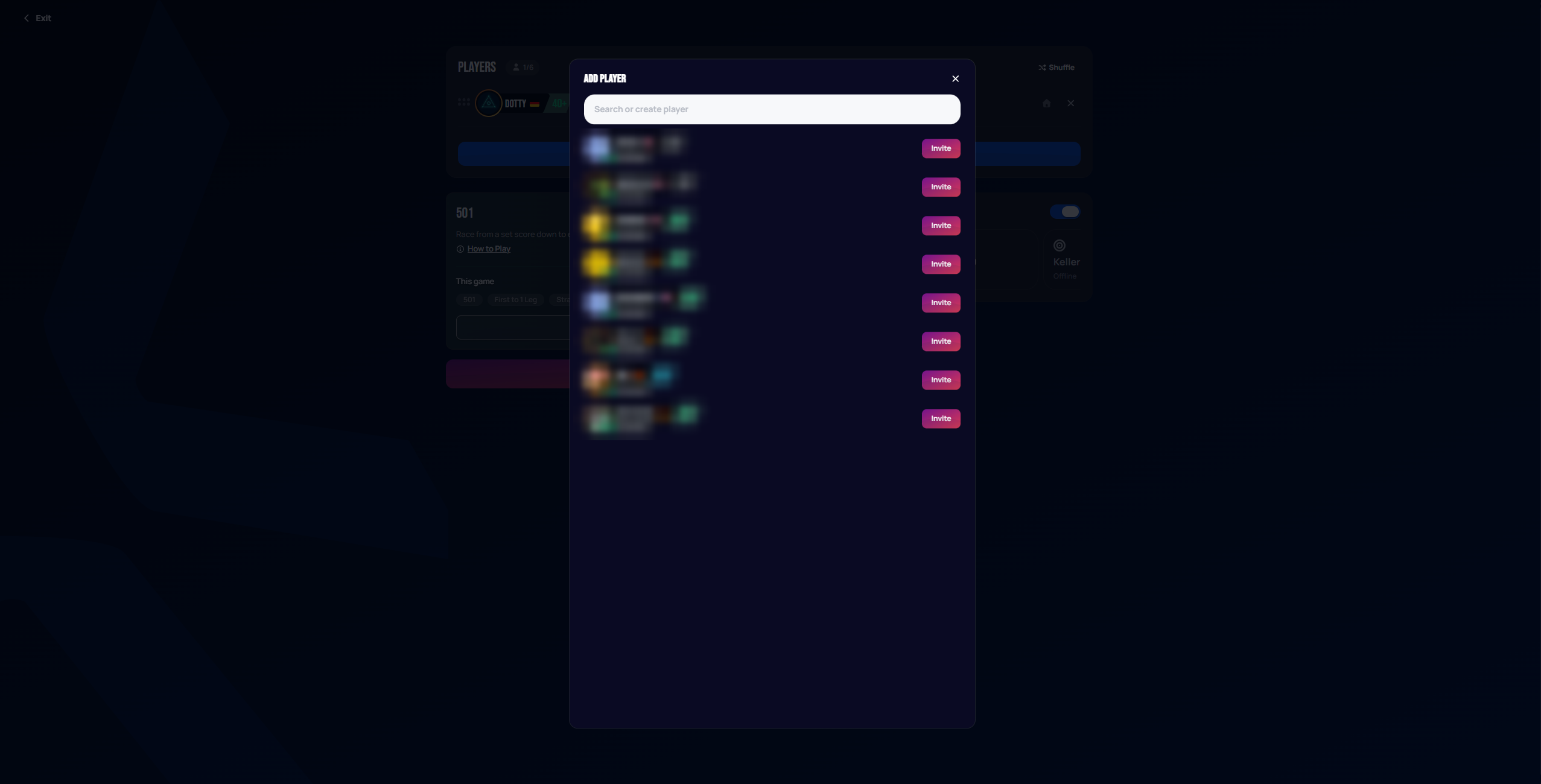
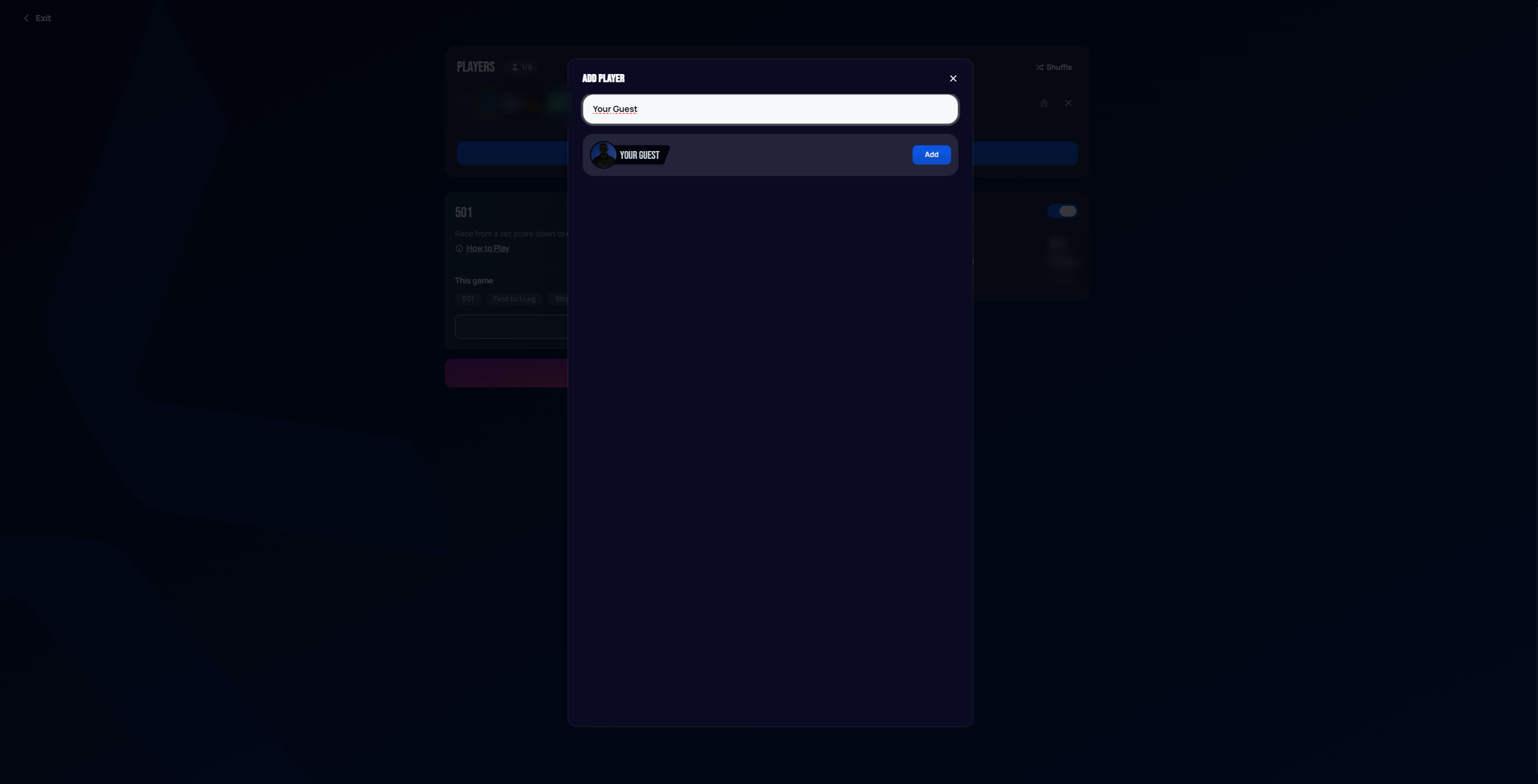
Selecting Add Player opens a search list of other Autodarts users you can invite to the lobby, or lets you add a local guest player by typing a name.
 Personal data redacted
 Personal data redacted
Adding a bot
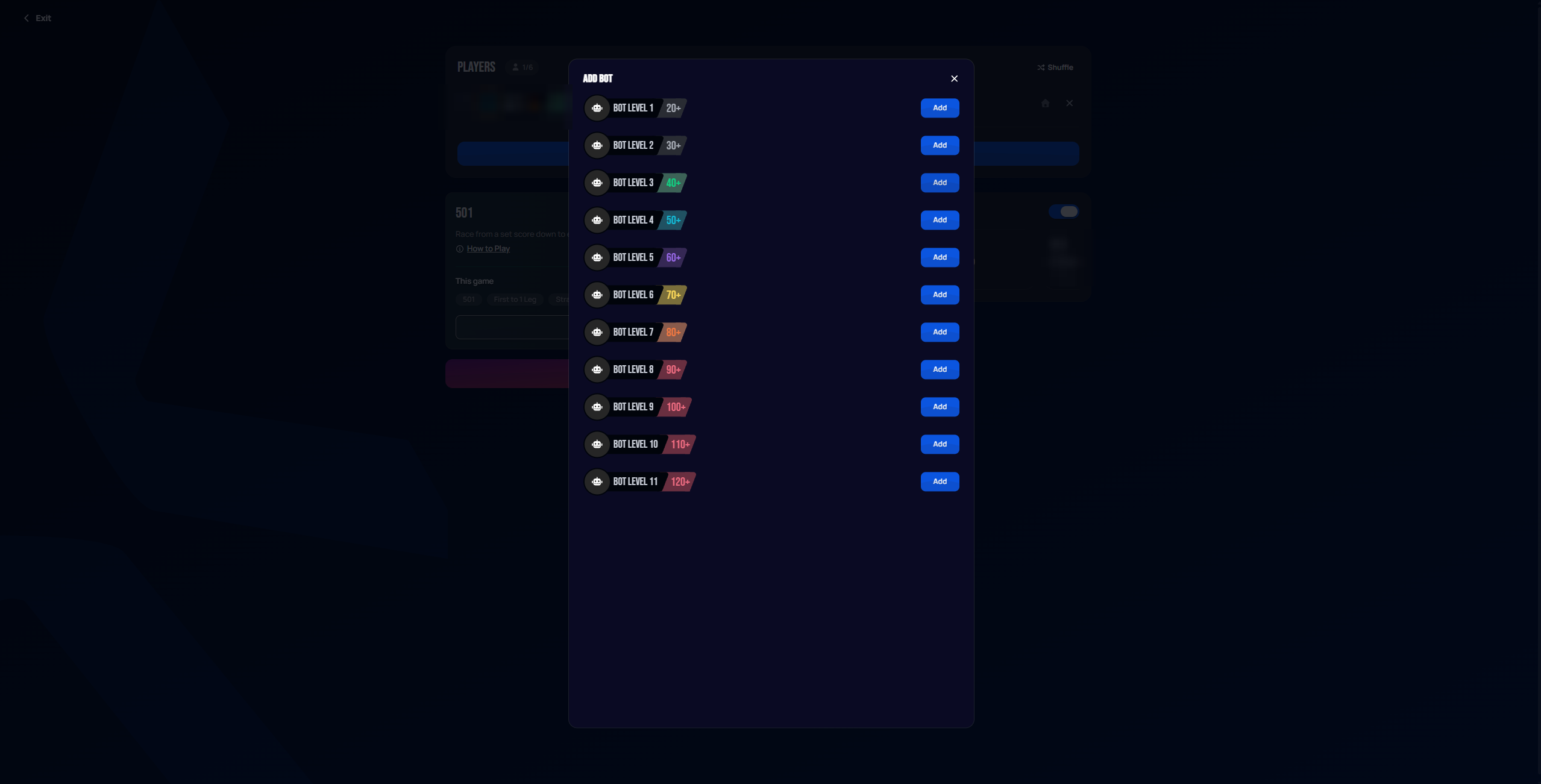
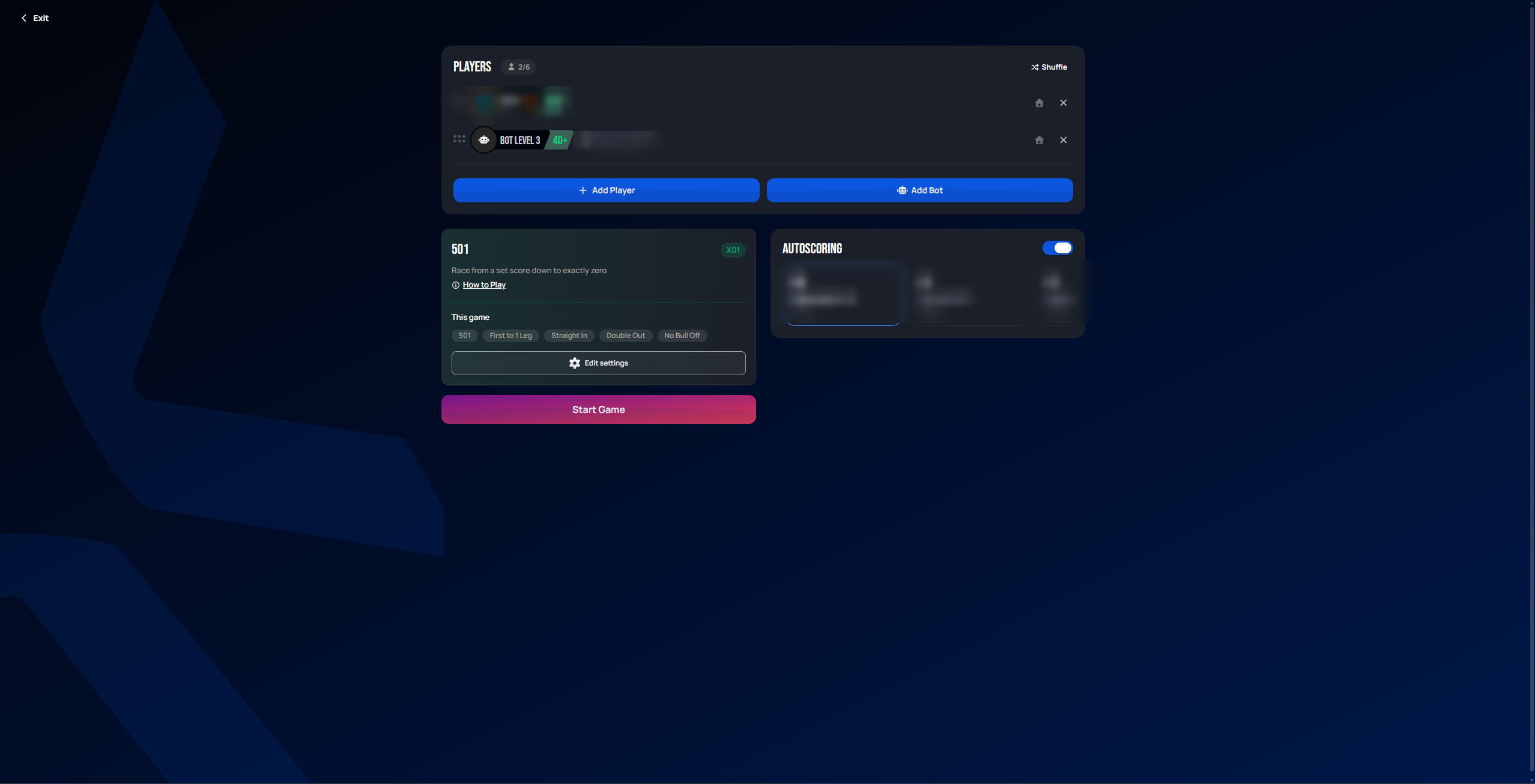
For a first game without another player on hand, selecting Add Bot lets you add a computer-controlled opponent at one of eleven skill levels (roughly indicating their average score).
 Personal data redacted
Once added, the bot appears in the players list alongside you, and the lobby is ready to start.
 Personal data redacted
Playing the game
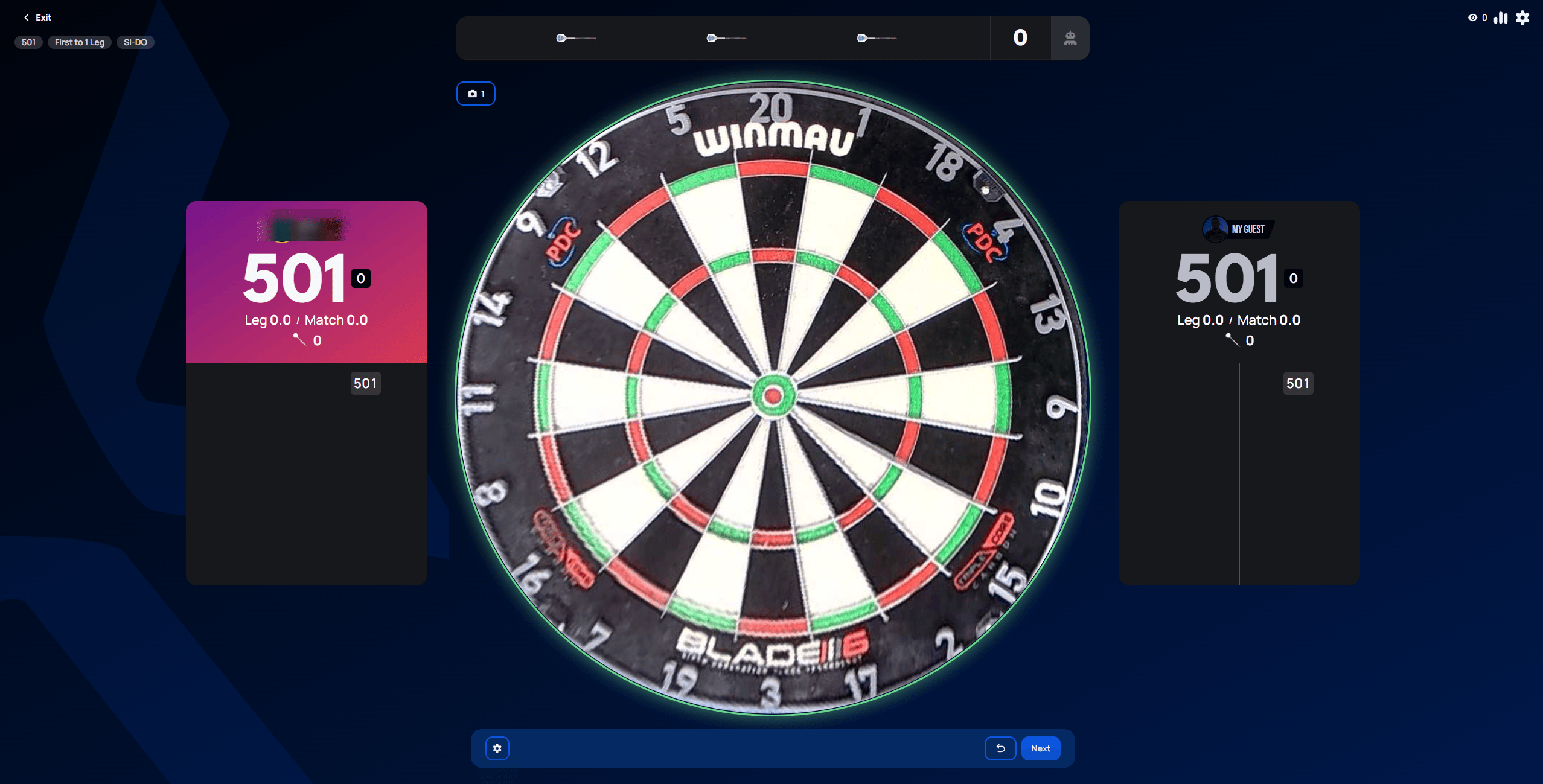
Selecting Start Game moves to the live match view: the dartboard camera feed in the center, each player's remaining score and leg/match average on either side. Both players start at the base score set earlier (501 here).
 Personal data redacted
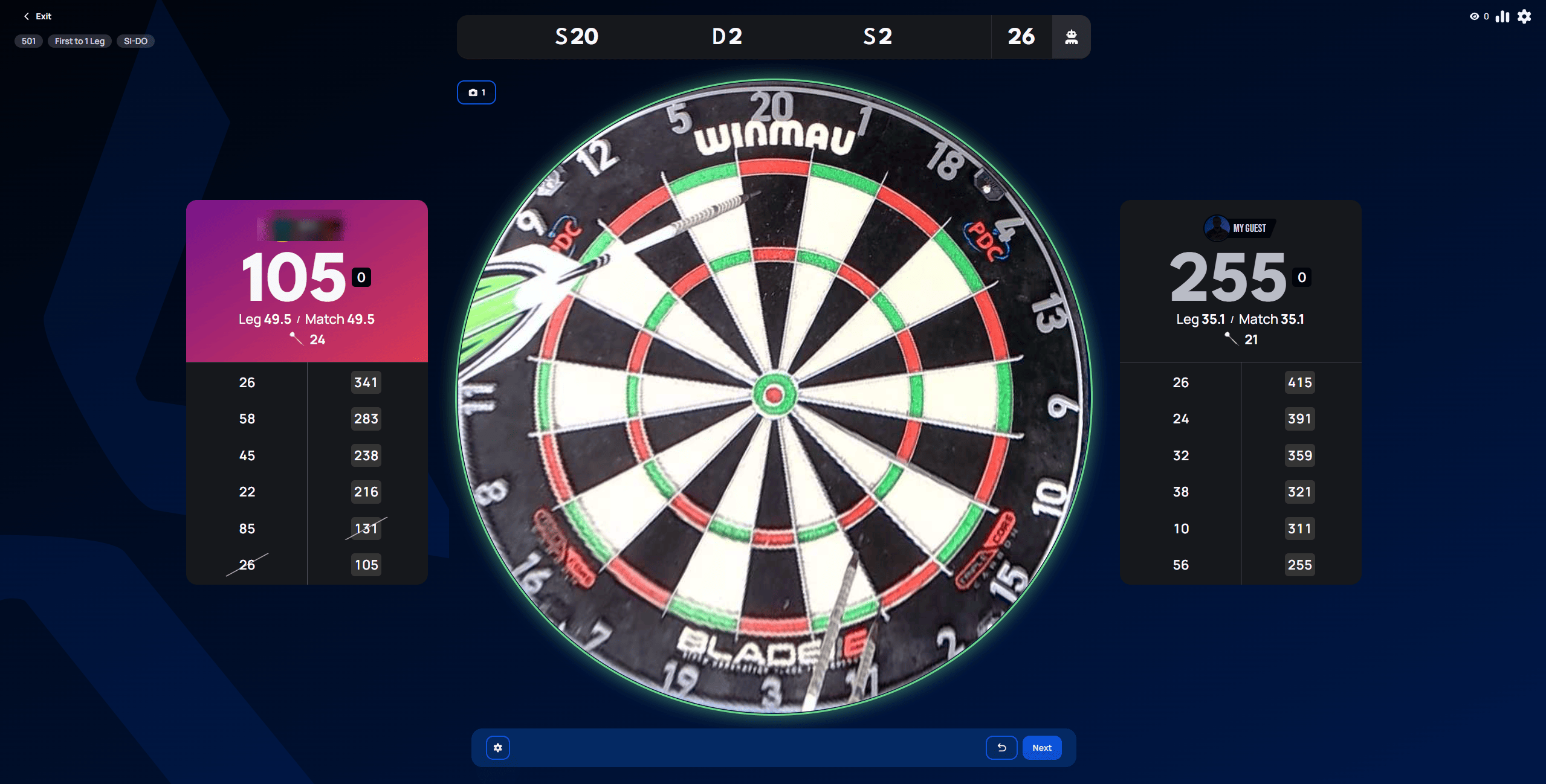
As darts are thrown, autoscoring detects each dart from the camera feed and updates the running score and turn history automatically.
 Personal data redacted
Correcting a misdetected dart
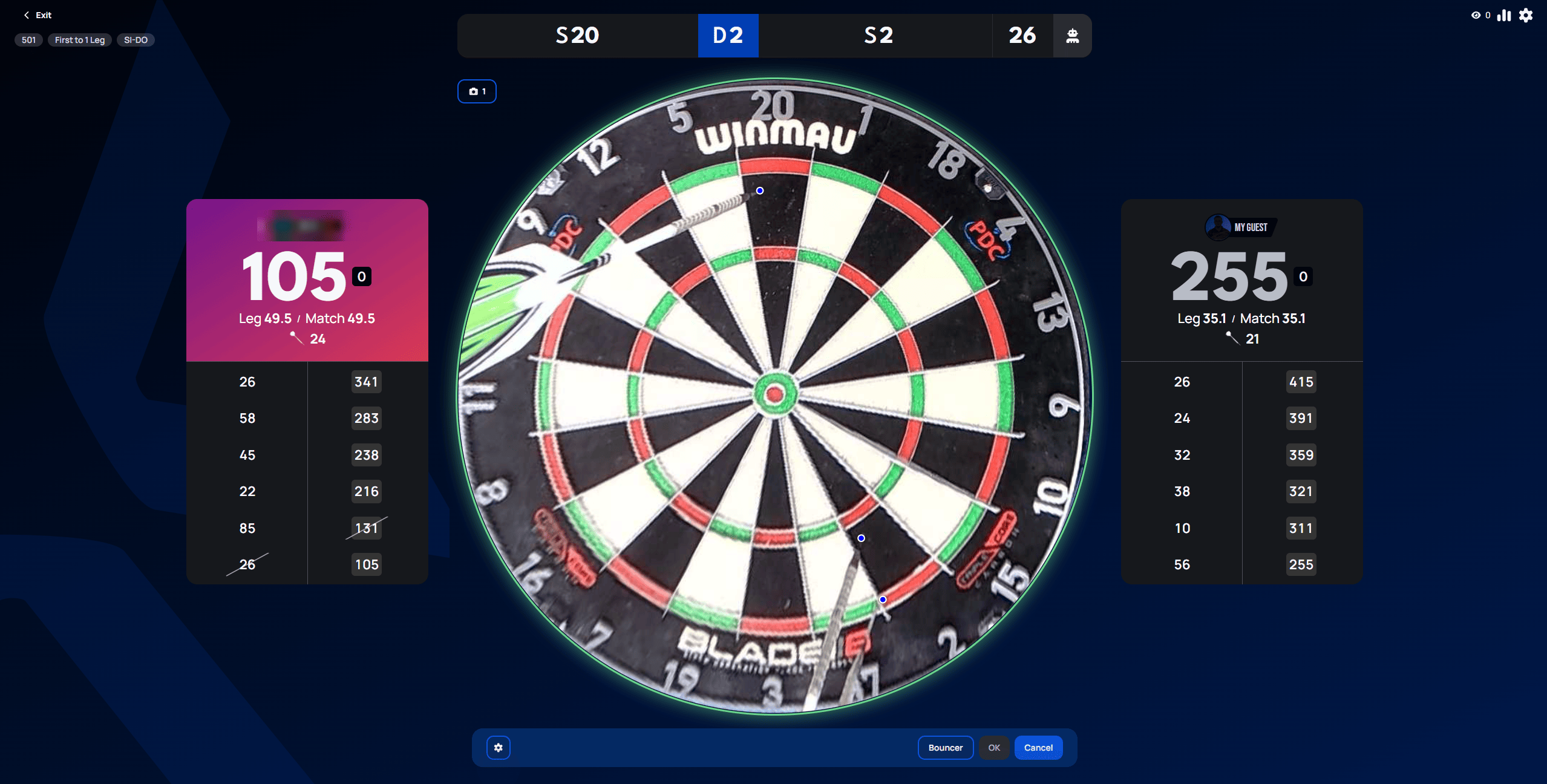
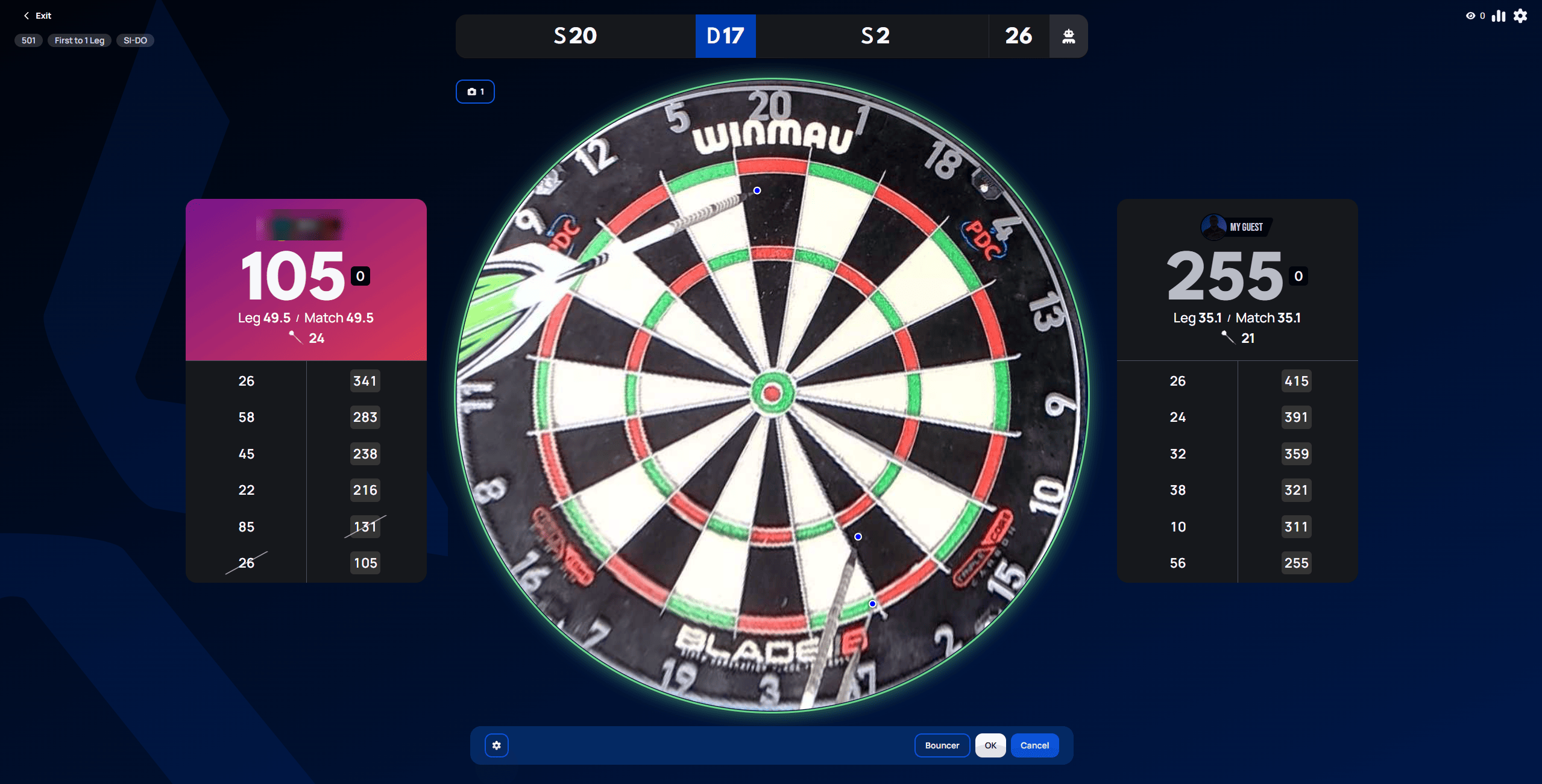
Autoscoring can occasionally misread a dart. If a detected segment is wrong, select it in the score bar at the top (highlighted in blue below) to correct it — you can then move the point to the correct segment and confirm with OK, mark it as a Bouncer (a dart that didn't stick), or Cancel to leave it as detected.
 Personal data redacted
Moving the point updates the highlighted segment (here, from the incorrectly detected D2 to the correct D17). Selecting OK confirms the corrected value and continues the game.
 Personal data redacted
Finishing the game
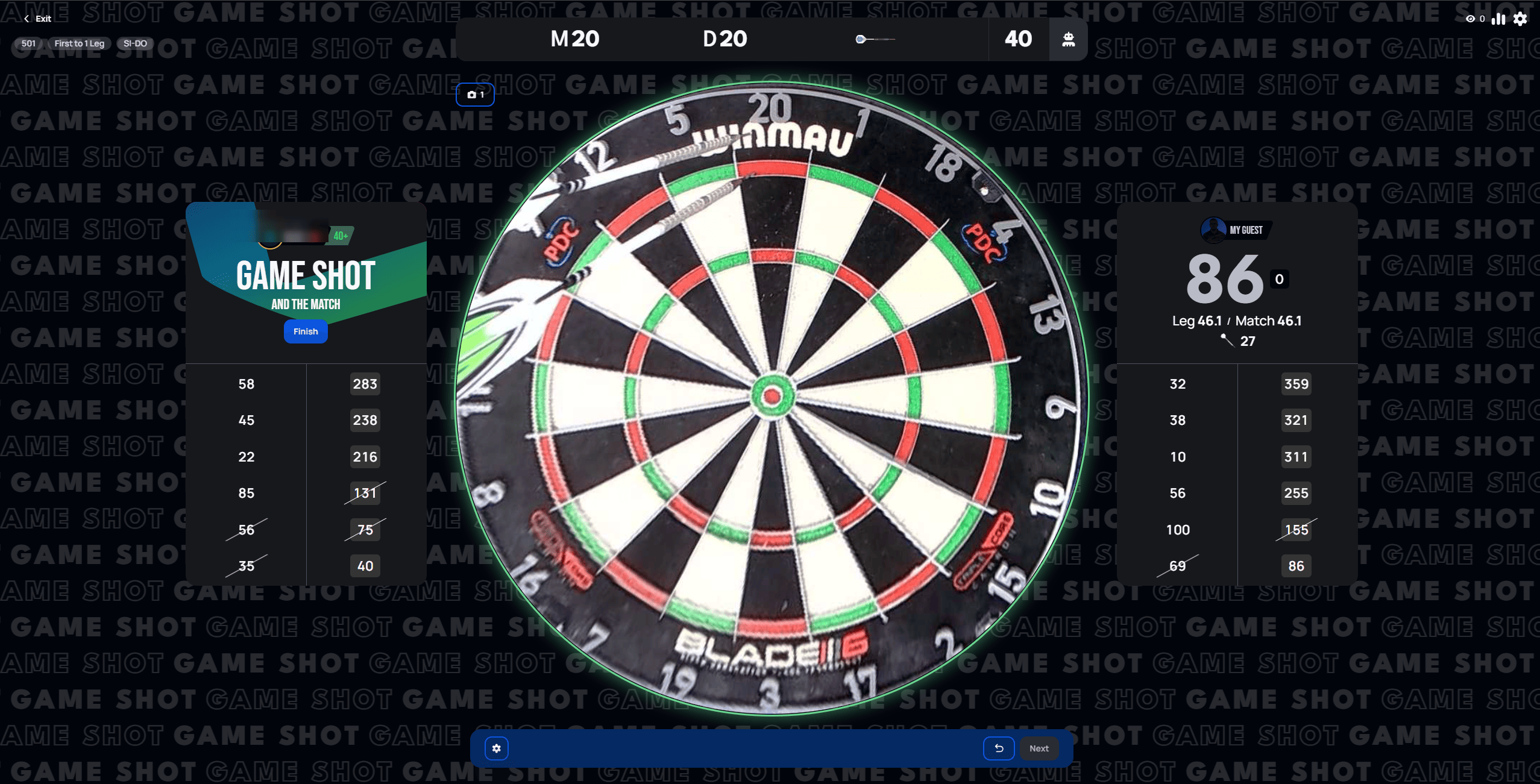
When a player hits a valid checkout, a Game Shot banner appears on their card right away, before the full results screen — a quick confirmation of the win with a Finish button to move on.
 Personal data redacted
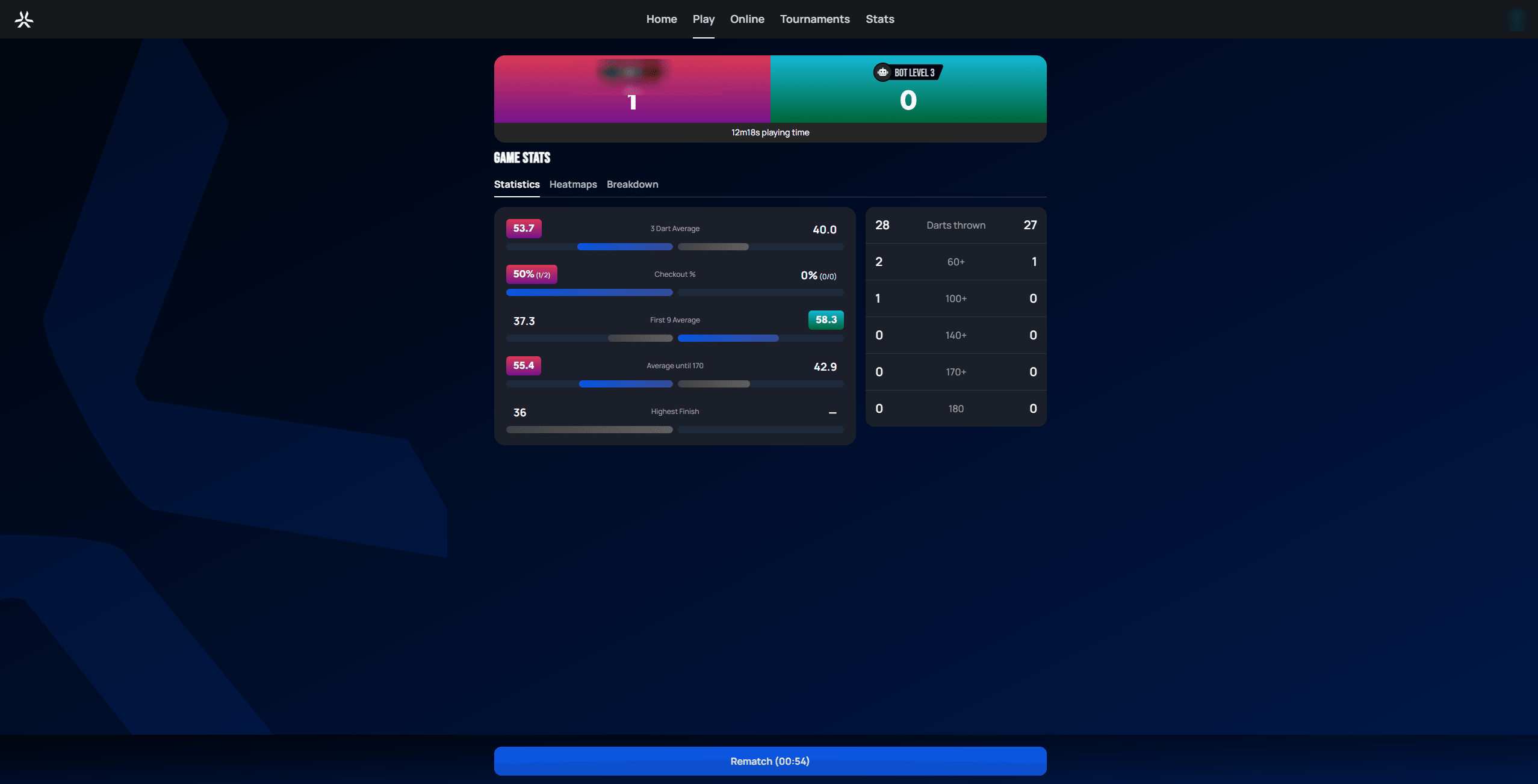
Selecting Finish ends the match and shows the full result along with detailed game stats: 3-dart average, checkout percentage, first-9 average, and a breakdown of scoring rounds (60+, 100+, 140+, 170+, and 180s). From here you can start a Rematch or head back to the menu.
 Personal data redacted
What's next
This completes the Getting Started section. Follow-up documentation passes will cover other game modes, multiplayer/online play, statistics, and account settings.