Account Setup
This page covers creating an Autodarts account and signing in for the first time at play-v2.autodarts.io.
What you'll need
- An email address
- A modern web browser
Create your account
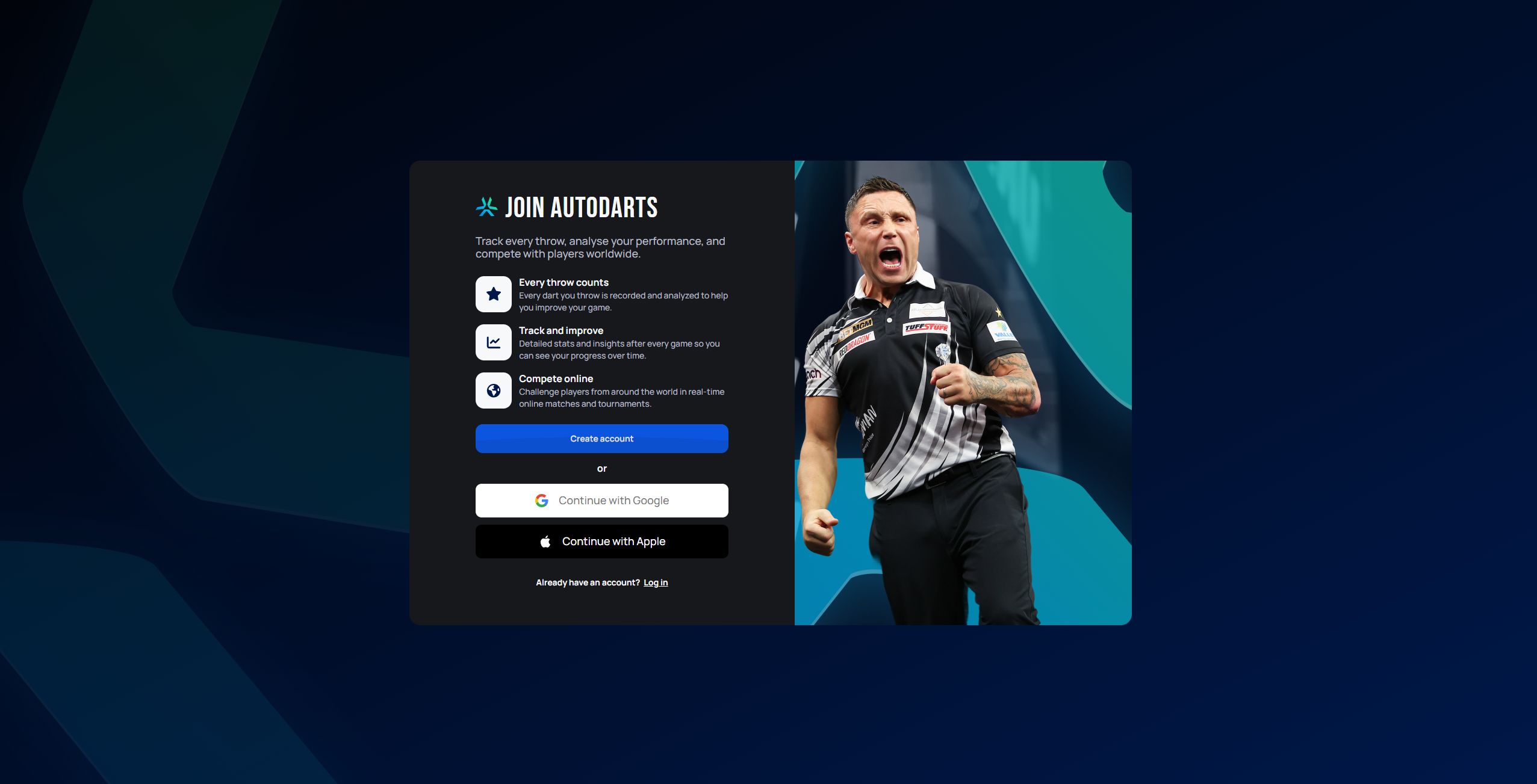
From the landing page, choose Create account to sign up with email and password, or continue with a Google or Apple account.
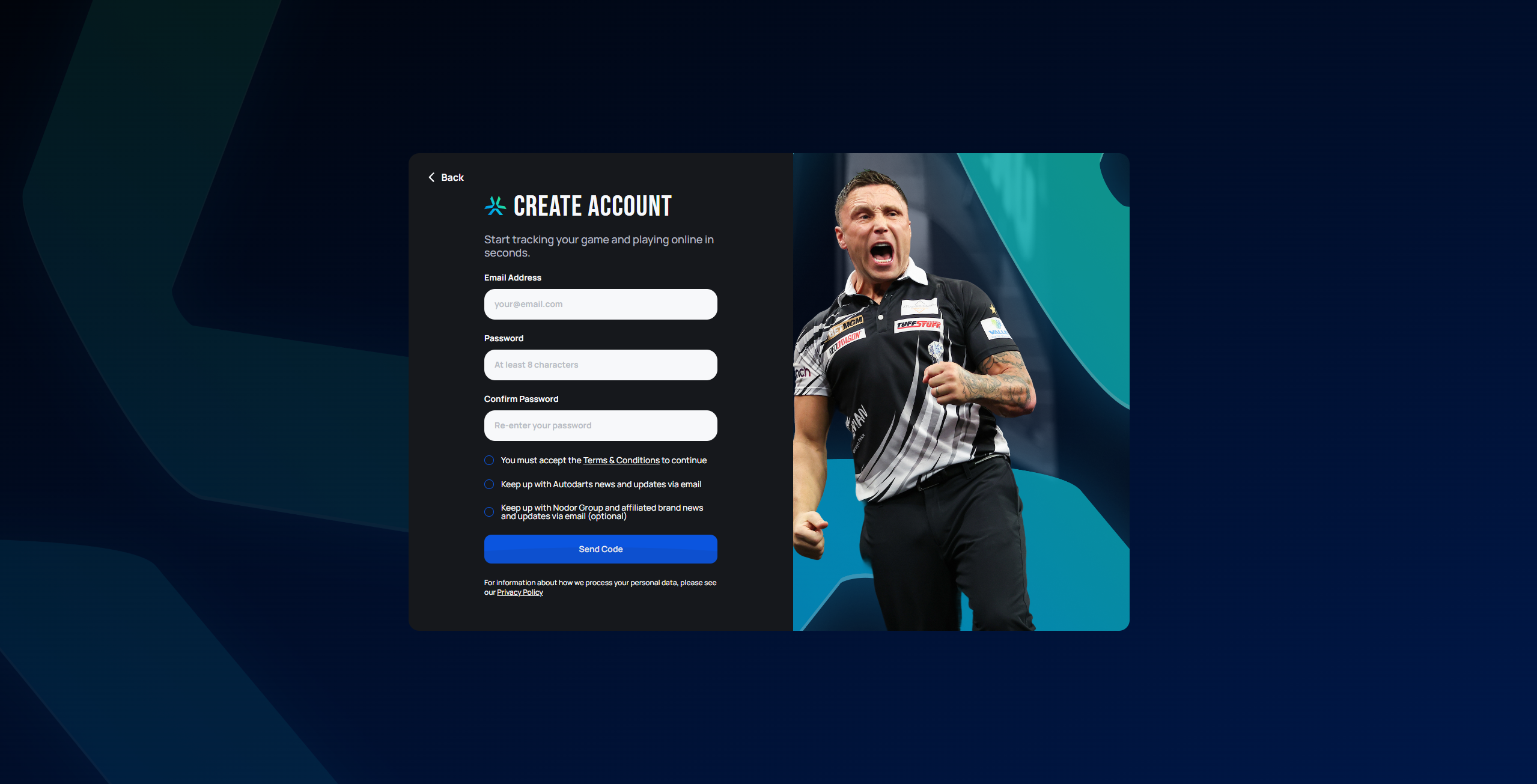
If you choose Create account, enter your email address and choose a password (at least 8 characters), then accept the Terms & Conditions. The two email-update checkboxes are optional. Select Send Code to receive a verification code by email and complete sign-up.
Sign in
If you already have an account, choose Log in from the landing page and enter your email (or username) and password.
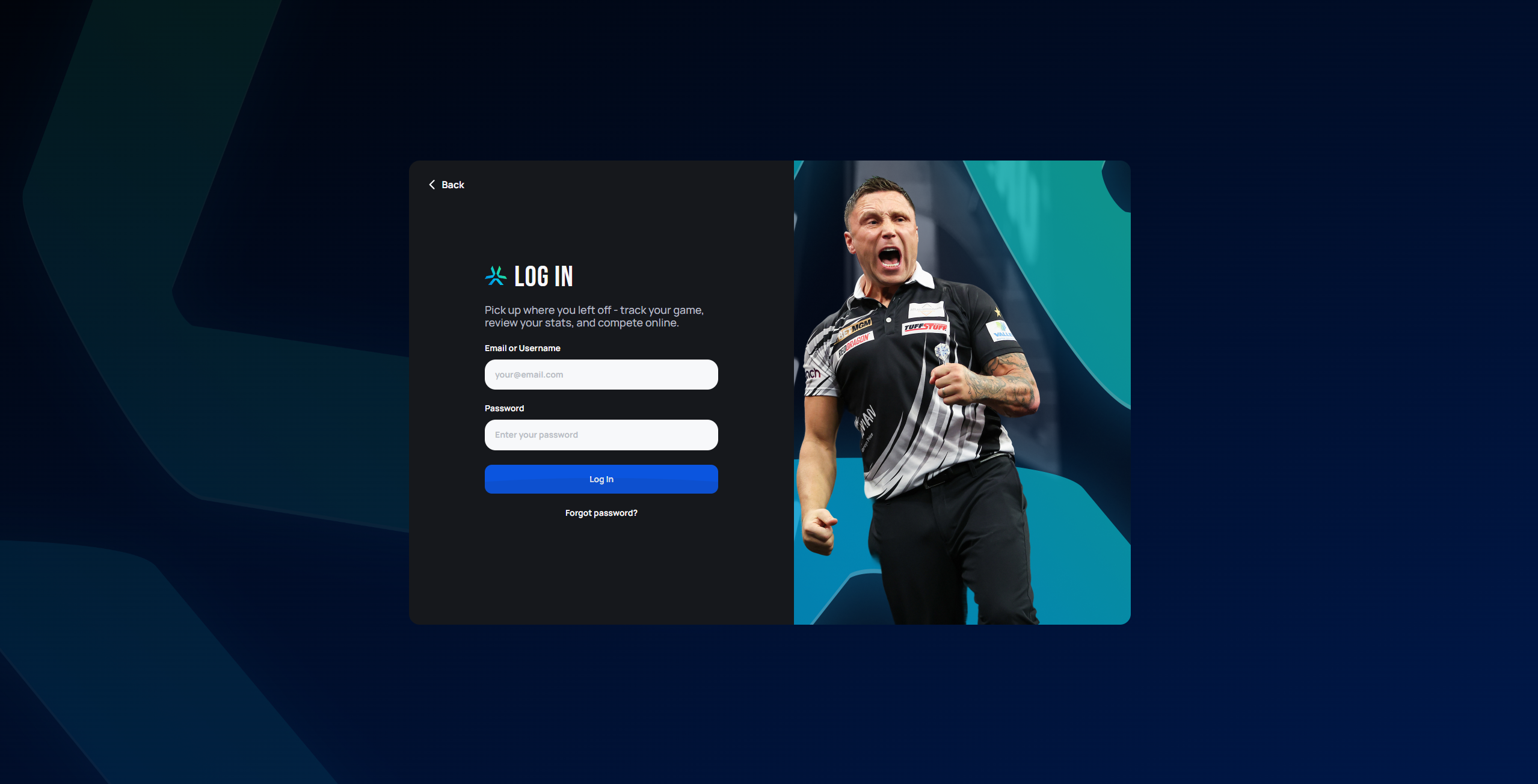
Use Forgot password? on this screen if you need to reset your password — Autodarts will guide you through resetting it by email.
After signing in
Once signed in, you land on the Home page, with your recent stats at the top, quick links to start a game or find an opponent, open tournaments, your friends list, and product news.
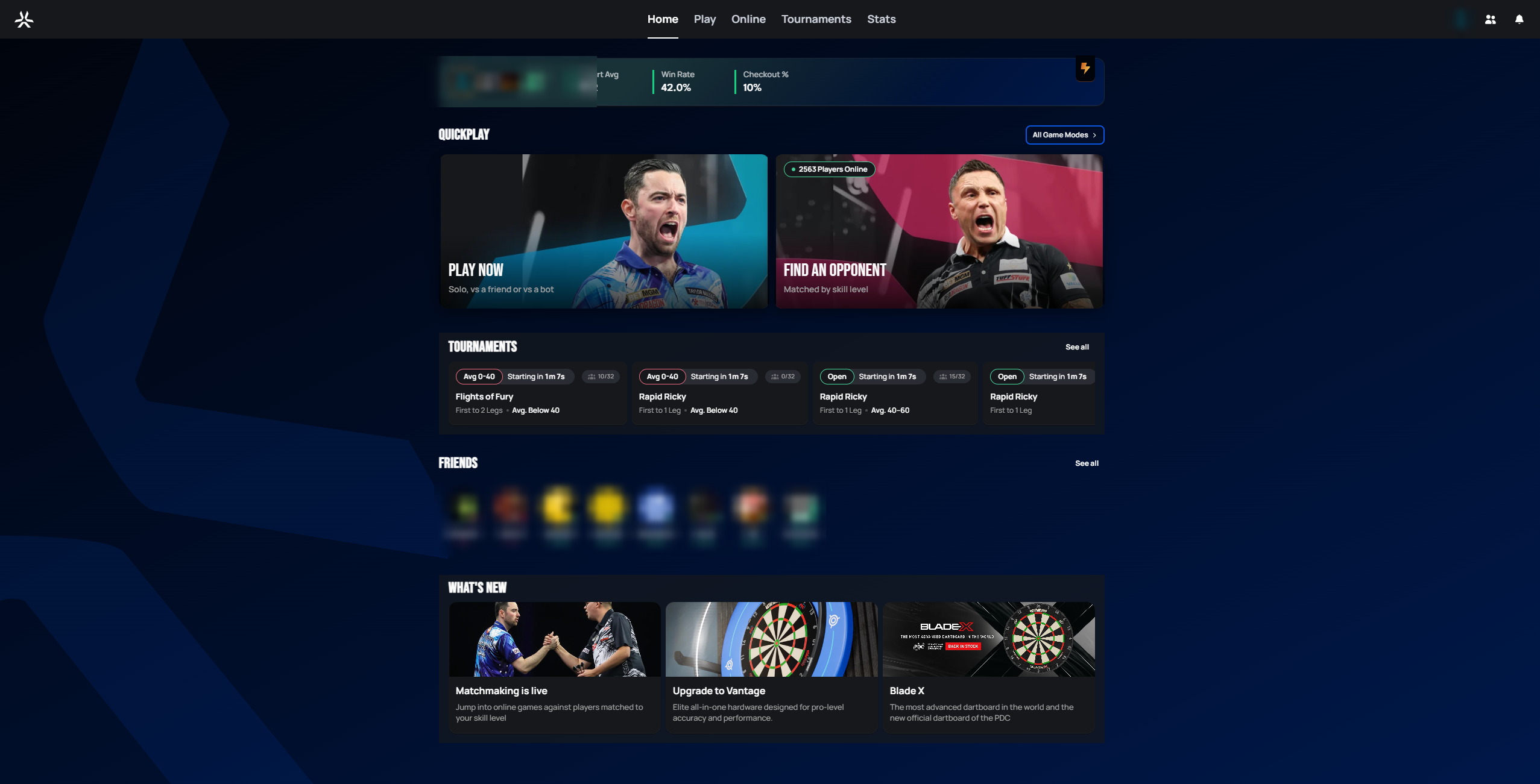 Personal data redacted
Account and profile settings (display name, avatar, preferences) are reached from the icons in the top-right corner — detailed coverage of that settings area is planned for a later documentation pass.
Next step
Continue to Playing Your First Game to start and play a match.